 Sample
FullTabPreview
 Documentation and FAQ
Documentation and FAQ
What is NQuick?
NQuick is a Notion integration to convert your Notion contents to website (or blog or API).
⚙️ How NQuick Works?
When you click the deploy button NQuick gets your content from your notion template and creates a complete website, a ready to install PWA mobile app and an API for professional usage.
It’s incredibly fast! Because it’s a static website that deployed on Cloudflare CDN system. No need to mention the offline working and caching feature!
There are 5 kinds of content. You can create website with Pages. You can create blog with Articles. You can customize your website with Configuration (aka: Modules). Also you can create Author Profiles for multiple author. You can list, design and handle your content with your Home Page.
✈️ Why NQuick is a Marvel of Engineering?
- 🧠 Quick : No need to the professional skills. No code. Easy to use. We have adopted Notion's Minimalist philosophy.
- 🚀 Fast : It’s serverless static website on CDN. The Wordpress sites cannot compete with Nquick. You access the site at lightning speed. It doesn't affect your speed if you're in Tokyo or London. NQuick can handle millions of users, so you have unlimited pageviews and bandwidth.
- 🔐 Secure : The hackers can’t hack your server. Because there is no server! HTTPS is forced as default. You can also encrypt your content with a password.
- 🤖 Modular : If you have some professional skills you can customize the site and build your marvel.
- 🆕 Modern : NQuick uses the latest technologies like PWA. Users can install your website to their smartphones and PC. Also it’s platform independent.
- ✍️ Notion : Notion is one of most popular note taking and productivity app. You can use almost all features of Notion on your website. Including Notion AI. You have power of smart AI too. Use Notion as CMS.
💫 How can i start?
✅ It’s easier than you think.
- Visit nquick.blog and create your 7 day trial account.
- Create your first blog with our templates and connect it to your own notion account.
- Type your website title and description and deploy it.
🌐 What about hosting and domain?
🆓 No hosting costs. We will give you a domain name like yoursite.nquick.blog for free.
But if you want use YourOwnDomain.com you can connect it with NQuick easly. No extra cost for custom domains. All included in you subscription.
👩🎨 Can i customize and personalize it?
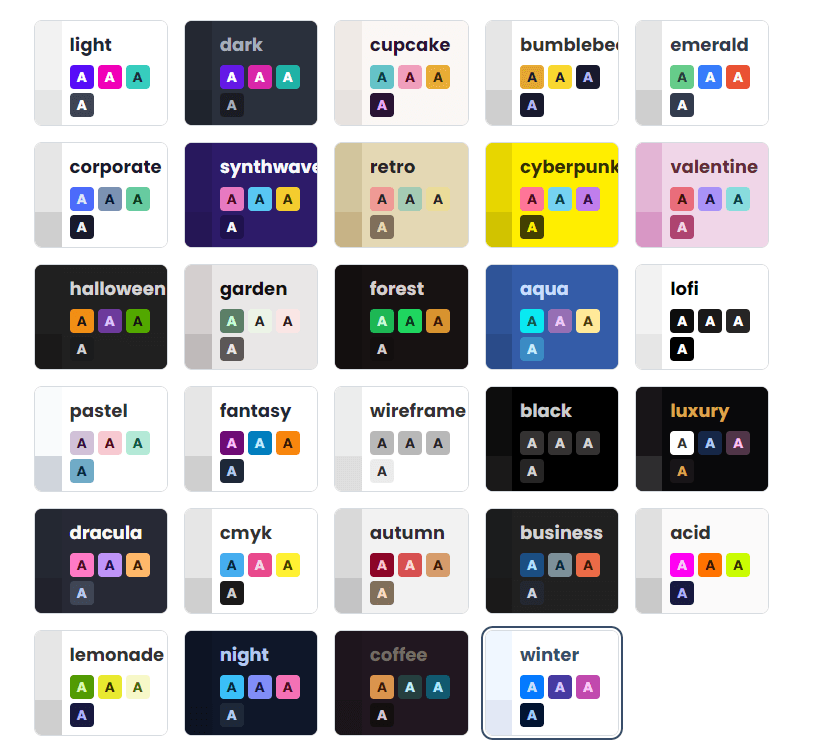
🎨 Yes. There are 24 wonderful themes. You have no limits. You can use your own css styles too. Customization is enabled for all html, javascript and css.
It’s Blog. It’s Mobile App. It’s Api. It’s SPA. You can even make a game with it. Your imagination is limitless.
🚗 How fast it is?
🏁 If you have friend who using Wordpress. Just create a NQuick website and compare their speed. Tested on : https://tools.keycdn.com/performance
ℹ️ NQuick builds your site once. And deploys it to the world once (Cloudflare CDN). But Wordpress receives every request from the other side of the world and responds back to the other side of the world.
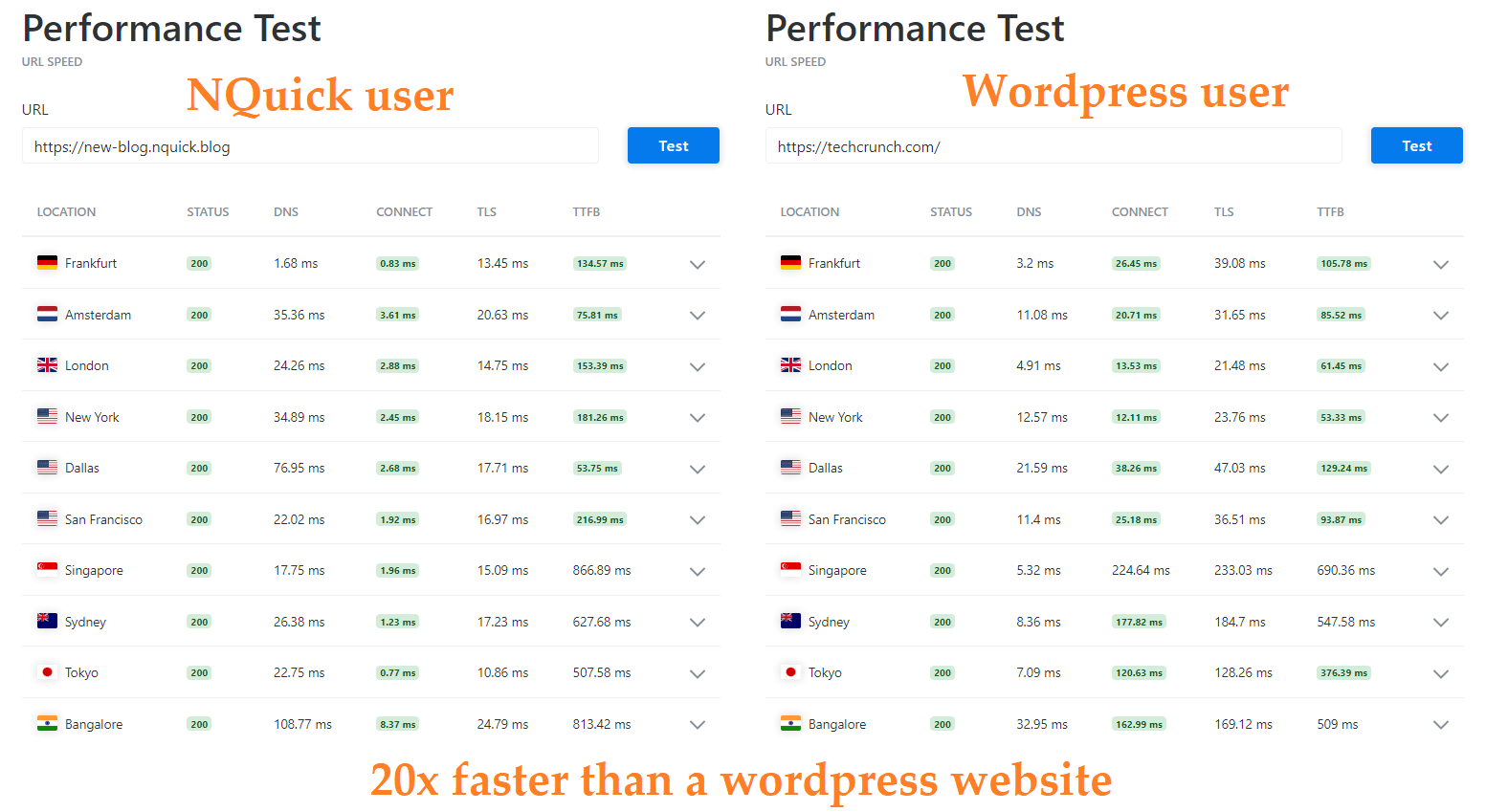
⚠️ You will see first full load time is longer in NQuick. It’s not problem because it download all pages in background for extra speed to surf between pages. You can use website offline after the first full load.
📦 NQuick compresses your images and content for extra speed. It optimizes Unsplash images too.
🗨️ Customer Support
ℹ️ You will get answer in 3 days.
Email : Type form.
🔠 Terminology
- NQuick : aka Notion Quick Blog.
- Notion :
- Notion Page : Your pages in Notion. ( Pages,Articles, Configuration, Homapages, Panel included)
- Content :
- Page (aka Nav) : Website/Blog pages listed in navigation bar.
- Article : Website/Blog articles listed in homepage or any page or another article.
- Type
- Status
- Author
- Author Page
- Configuration (aka Module) : Notion Pages who include JSON, JS, HTML, CSS configurations to affect all website. Provides extra customization.
- Builder
- Hosting
- Template
- Database : Notion databases. They are form of listed data.
- Trial :
- PWA :
- Blog Icon
- Title
- Badge
- Navigation
- Bottom Navigation
- Tags
- Keywords
- Priority
- Slug
- Footer
- Domain
- Notation
- RSS
- API ( aka api.json ) :
Content Types
There are 5 kind of content; Article, Page, Author Profile, Home Page, Configuration. You can select type of your content on Notion.
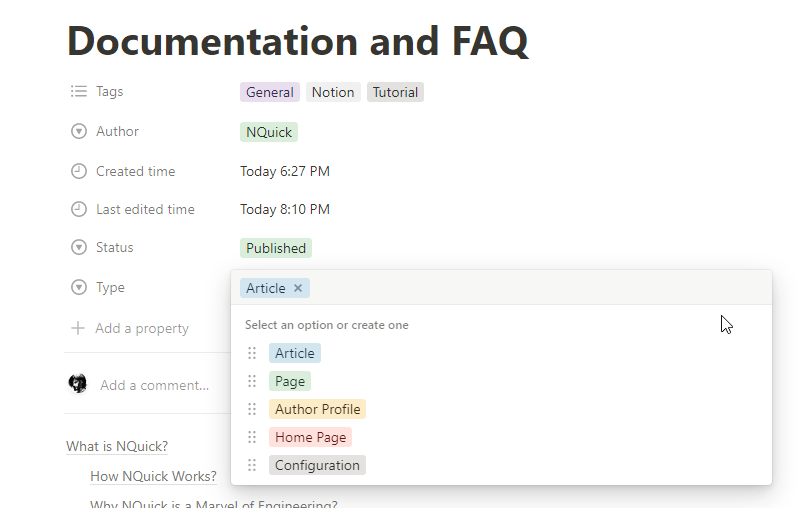
📃 Pages
Pages are listed in navigation bar hierachycally.
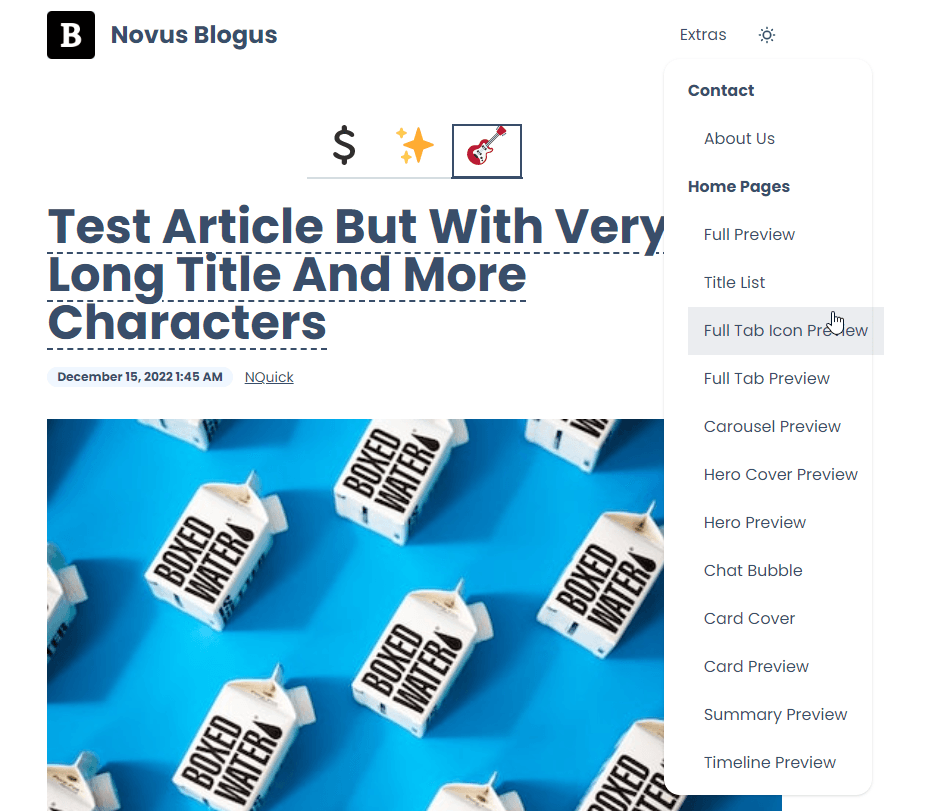
Example: Contact Us, About Us
📄 Articles
Article can be listed on other types like Home Page and Pages.
They aren’t listed in navigation bar.
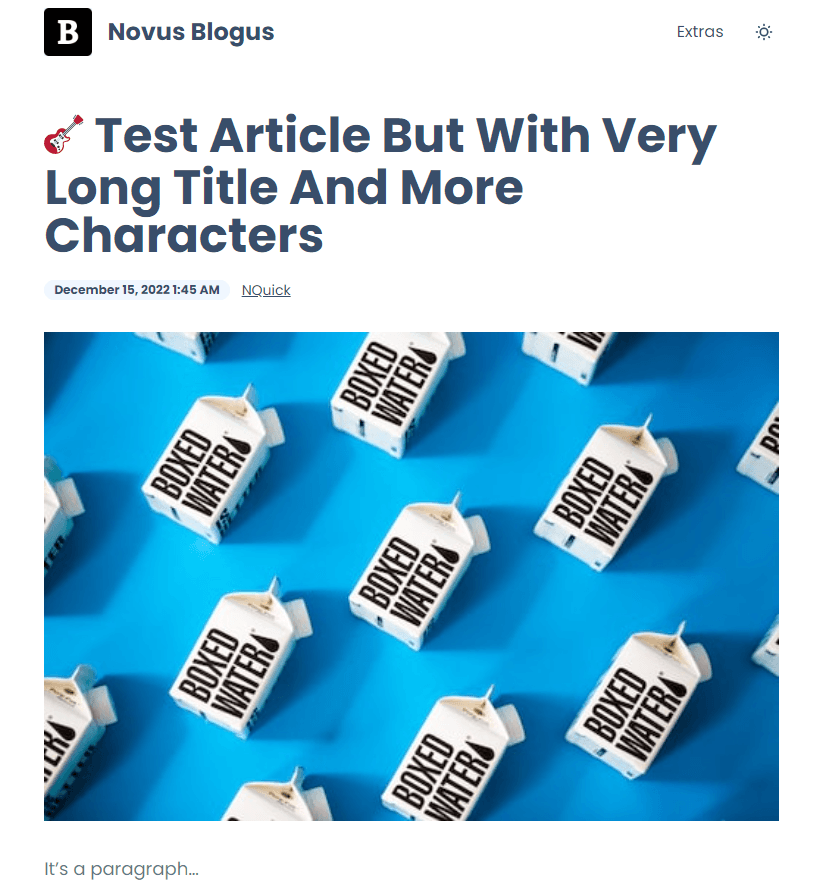
Example: How to make up? , My first blog article.
🏠 Home Page
Home page is the main page of your website. It is usually the first page visitors will see, and it includes information about you, your services, and any other important content. It can also include links to other pages or articles on your website. Home Page is highly customizable and can be tailored to fit your needs.
You can one of sample home pages. Or customize them.
Notion Side (Customization)
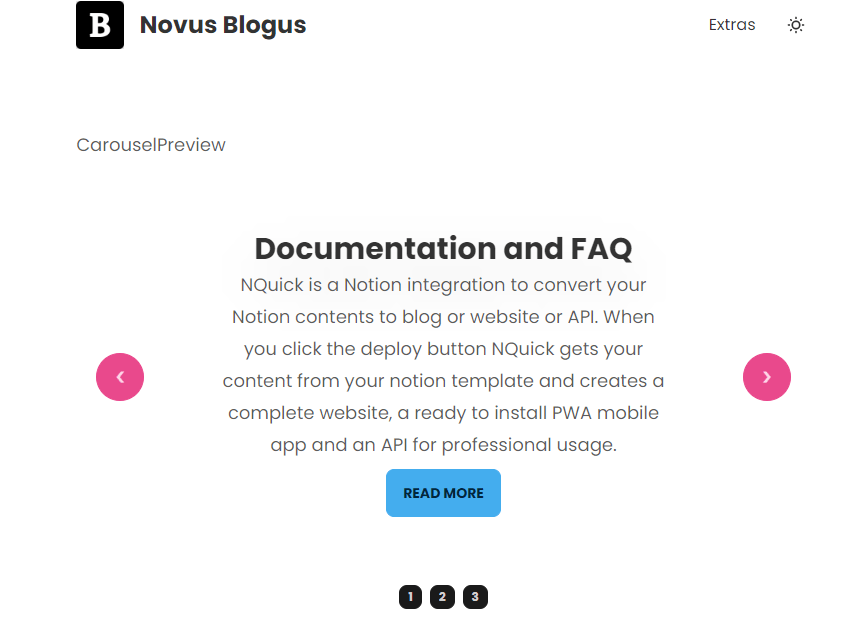
Carousel Home Page
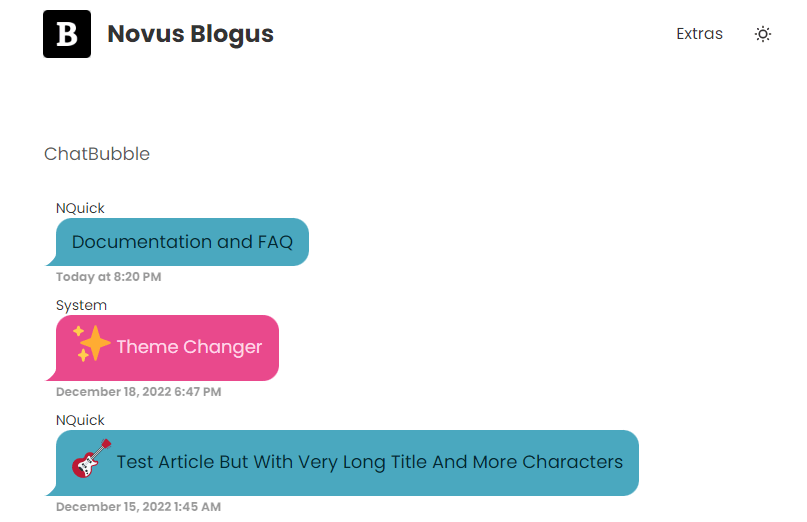
Chat Bubble Home Page
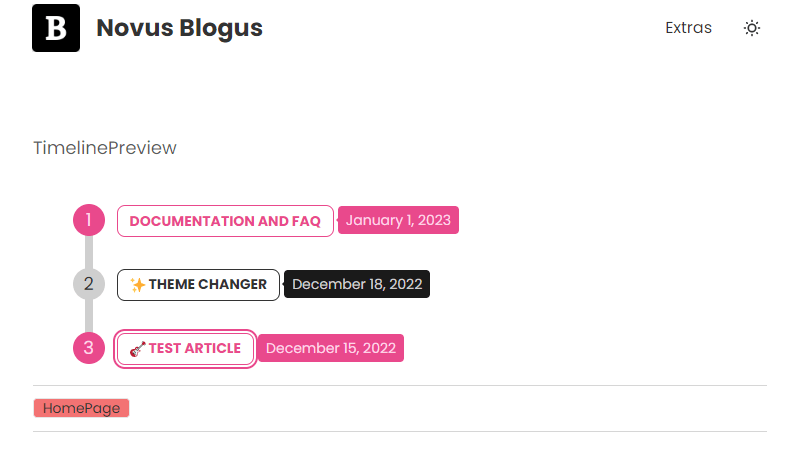
Timeline
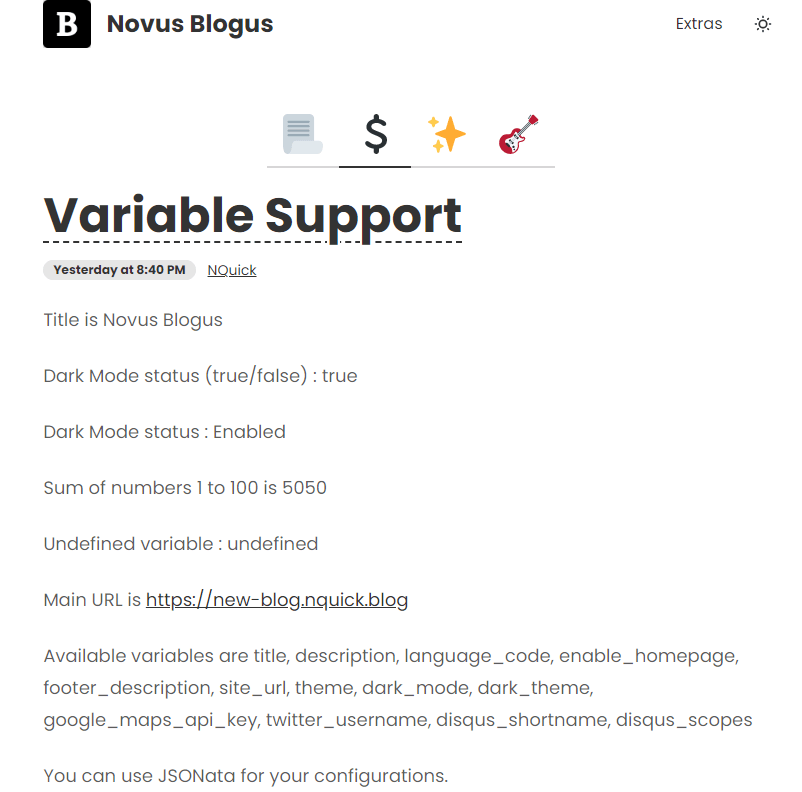
Tabs Home Page
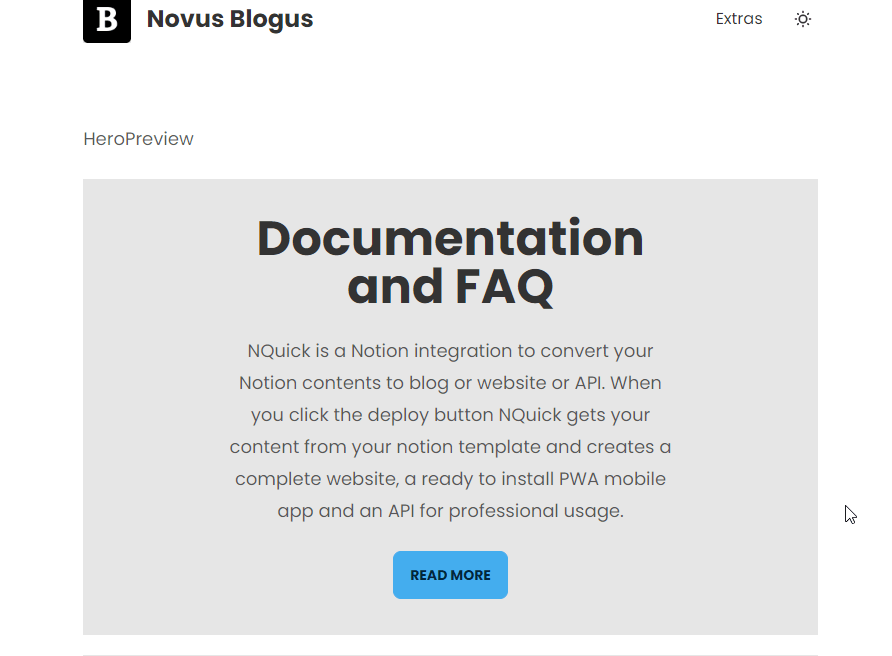
Hero Cards
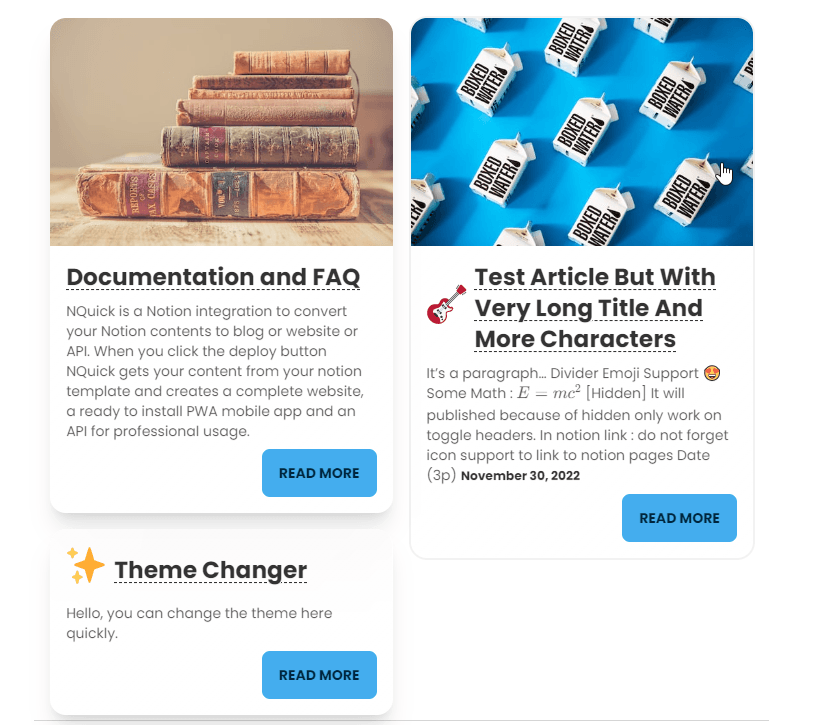
Cards
🙎♂️ Author Profiles
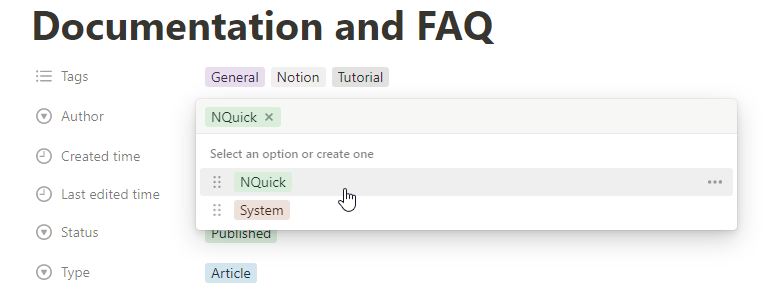
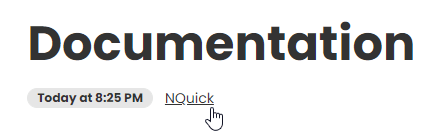
It’s what user see when click your profile. Use Author property and create it with same name.
⚙️ Configurations
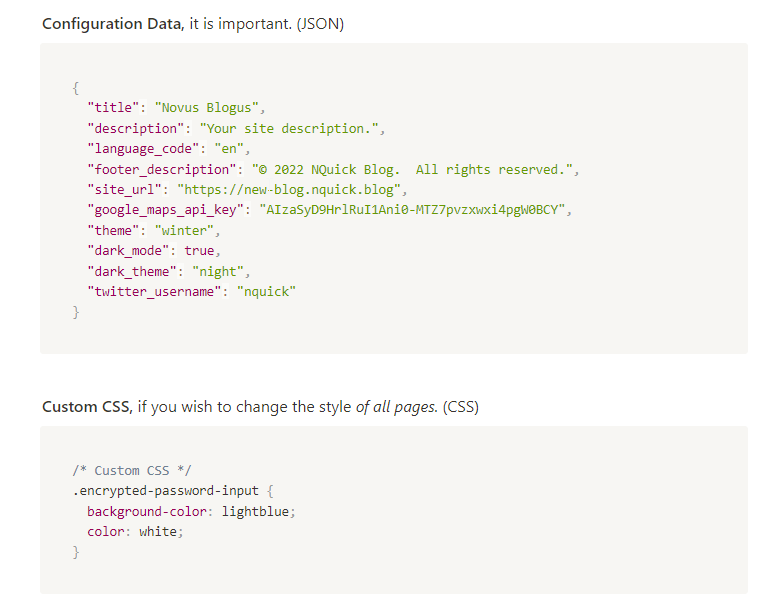
Configurations are not website page. They will not published like pages, articles, author profies, home page. But they will be used in all of your page.
All modules are a configuration. You can create your own module.
Main configuration is Configuration please do not delete it!
Notion Side
NQuick Panel Side
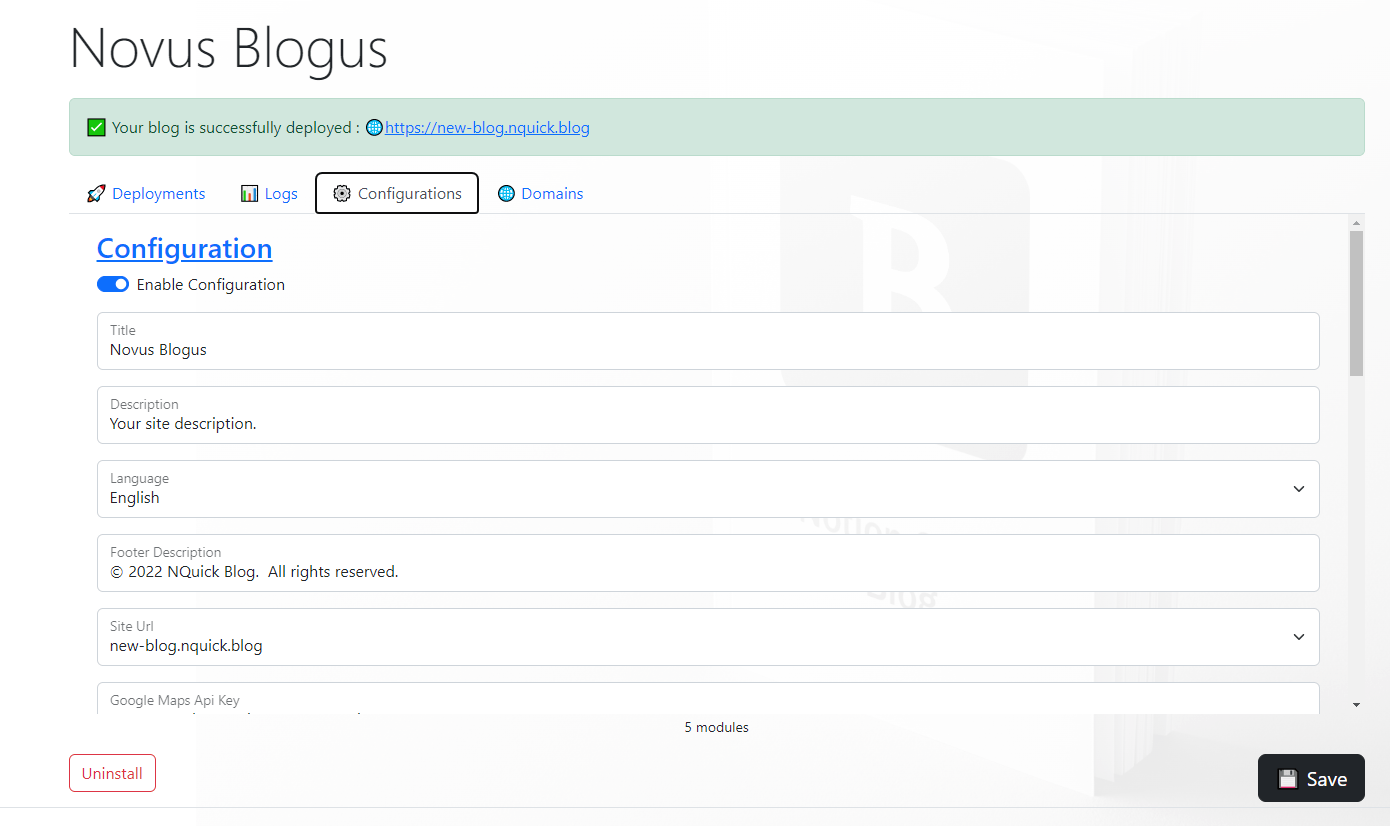
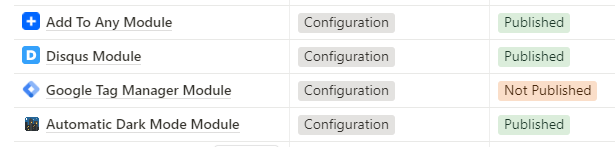
There are default modules. Set them Published to use them. (Read them first)
Important steps
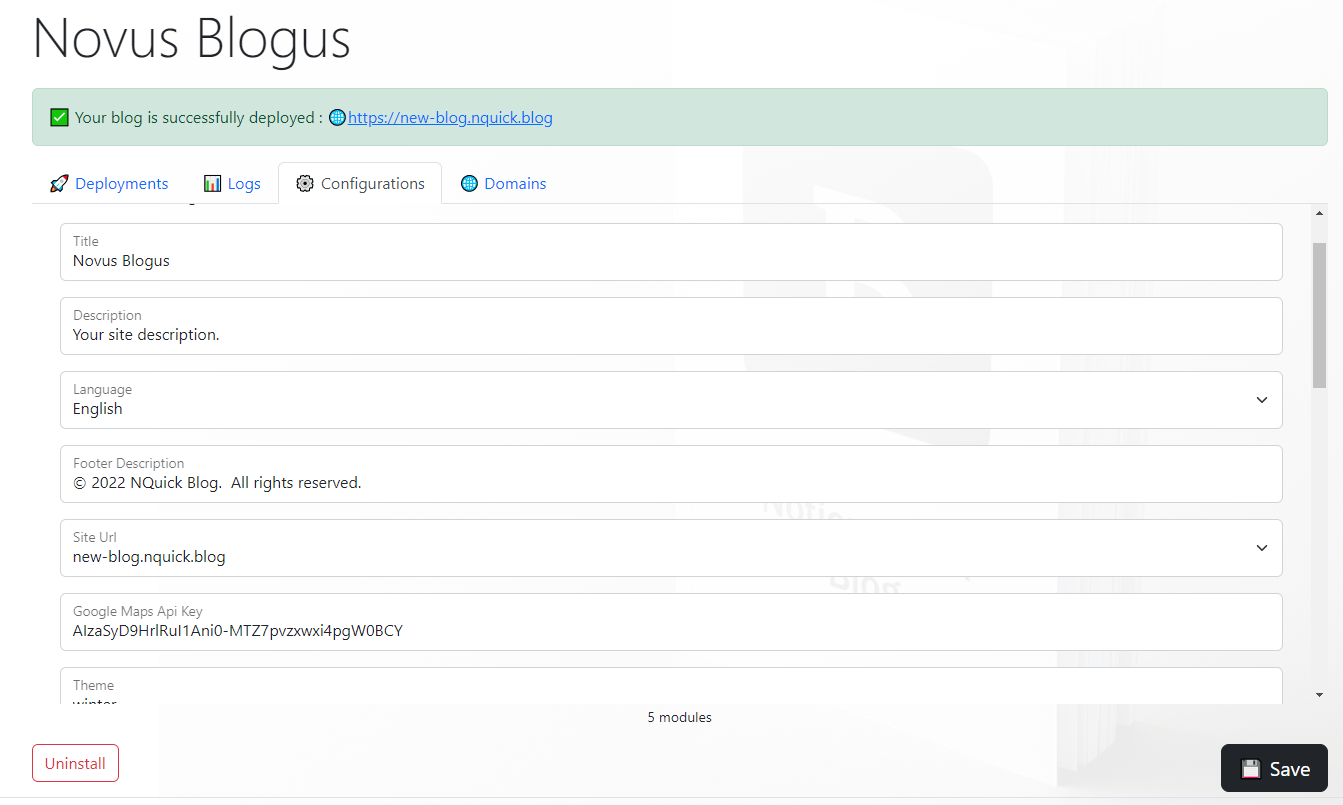
⚙️ Set Title and Descriptions
Use NQuick panel to set them : https://nquick.blog/blogs
They are important for SEO.
🔤 Localization
There are 14 languages. Set blog language to your content’s language.
Also URL slug’s will localized. ( “Article Name” → yoursite.com/article-name )
Example for Turkish : “Yazı Dili” → yoursite.com/yazi-dili
Example for Korean: “기사 언어” → yoursite.com/gisa-eon-eo
Example for Japanese : “記事の言語” → yoursite.com/kiji-no-gengo
Example for German : “Schöne Artikelsprache” → yoursite.com/schone-artikelsprache
You can also use custom slugs: [slug=sample] → yoursite.com/sample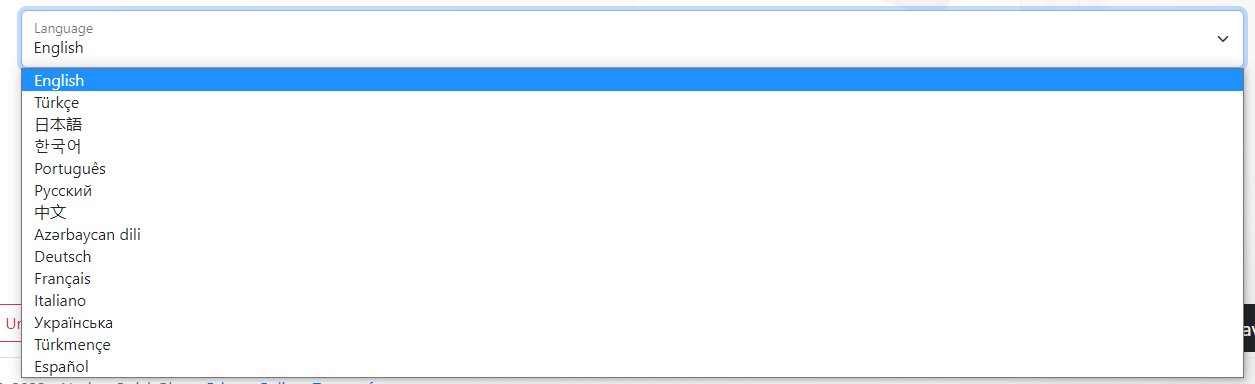
🌃 Set Theme and Dark Mode
Set a light theme and dark theme. Do not forget to enable dark mode and automatic dark mode module. Some users are using the entire operating system in dark mode. Setting dark mode will make them happy.
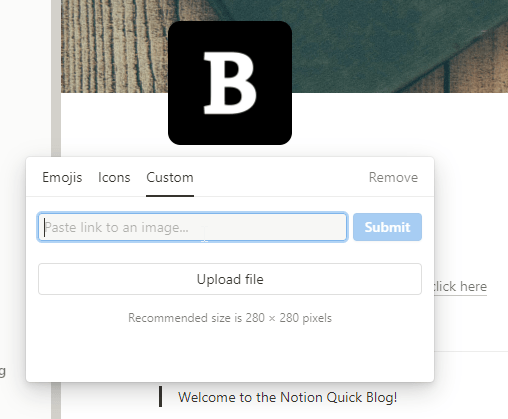
⬛ Change Blog Icon
Set your own icon on Notion. It’s required for pwa mobile app and website favicon.
ℹ️ You could also use emojis and notion icons if you have no logo.
🏷️ Use Tags for SEO and Categorization
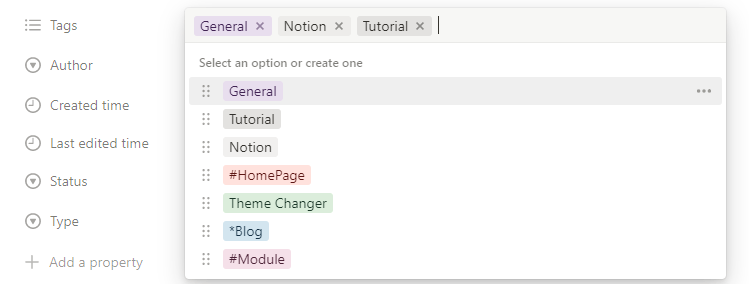
| Tag Type | Usage | Scope | Description |
|---|---|---|---|
| Normal (Both) | Example | Keyword(SEO) + Blog | It’ll be shown blow the content and It’ll be added to keywords header. |
| Keyword Only | *Example | Keyword(SEO) | It’ll be added to keywords header. |
| Blog Only | #Example | Blog | It’ll be shown blow the content |
Blog Tag
If you have page with same title. It will navigate user to the page.

Keyword Tag
It’s important for SEO.
<meta name="keywords" content="Notion, Tutorial, Blog">
ℹ️ If you want to add a tag to all pages and article. Add it to your Home Page .
🌍 Add you custom domain
If you have your own domain add it. https://nquick.blog/blogs
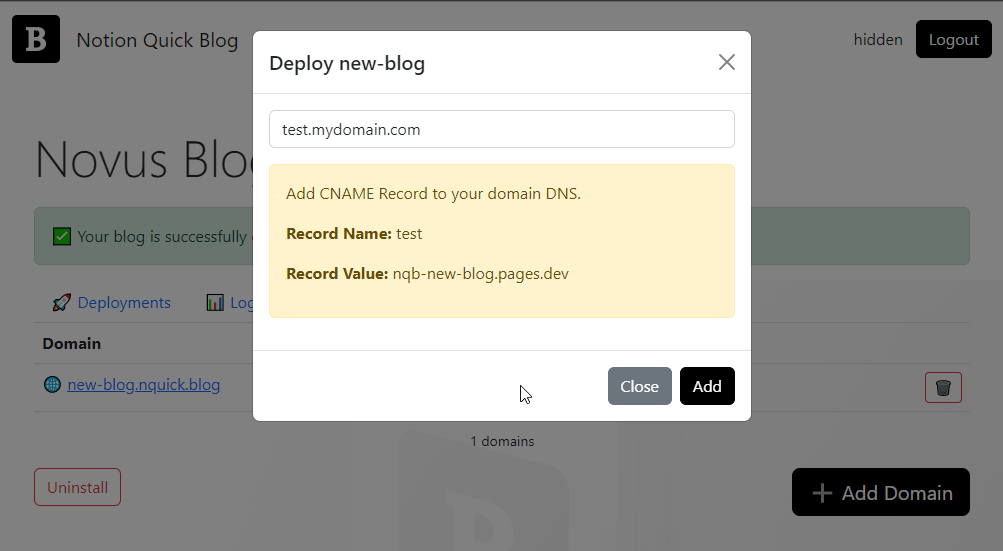
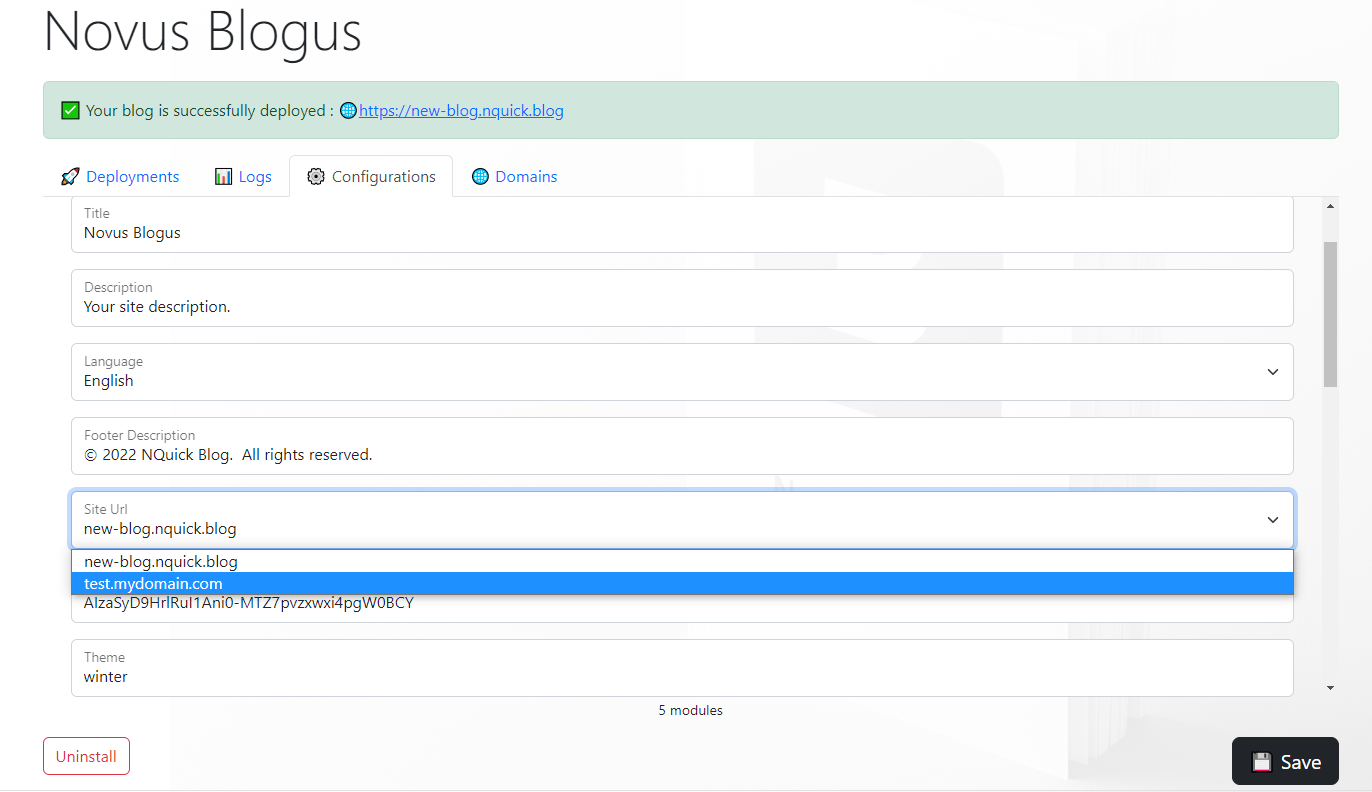
⚠️ Do not forget to set site url again and deploy.
Features
🔐 Password Protection
You can encypt your content in toggle and toggle header . NQuick uses strong AES protection on client side.
Type /toggle or /toggle heading and create toogle.
Set title of toggle like My Title [password=mypassword]
Here is a sample. Password is demo
It is a password encypted content
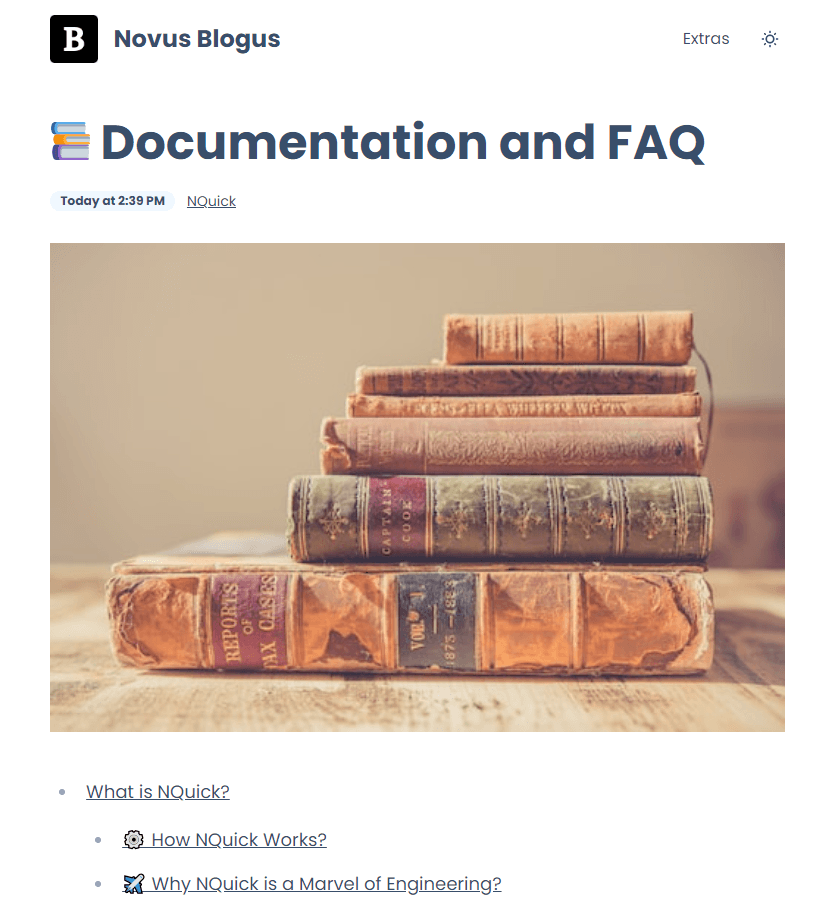
🖼️ Covers and Icons
Notion covers and icons will shown on your site. Just set them on Notion.
Notion →
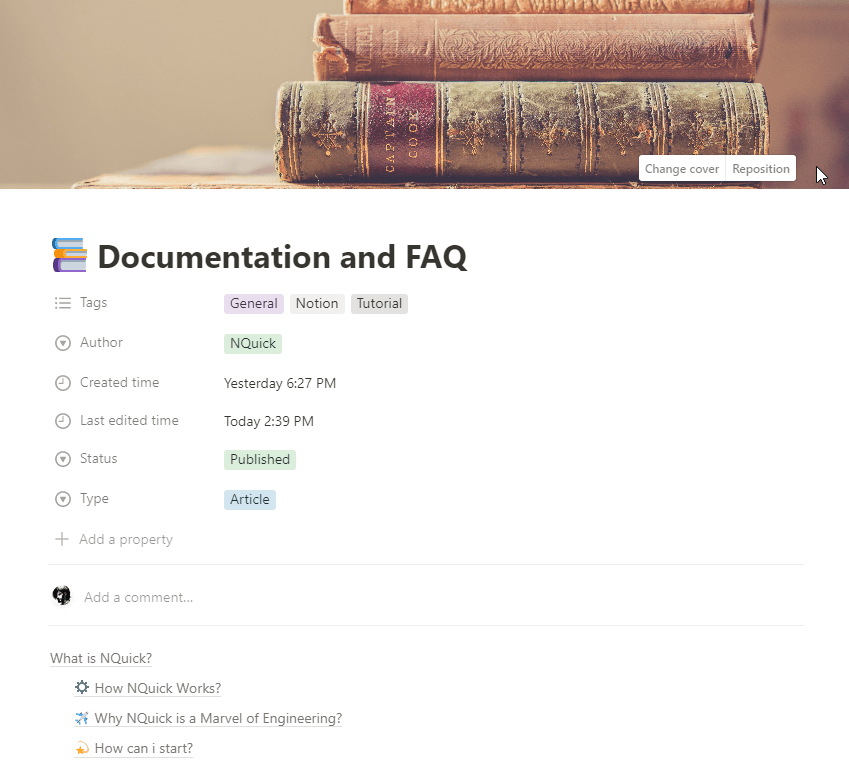
← Website
🗺️ Sitemap, Robots.txt, RSS feed
All of them are supported defaultly. NQuick is search engine friendly.
Sitemap : https://yoursite.com/sitemap-index.xml
Robots : https://yoursite.com/robots.txt
RSS: https://yoursite.com/rss.xml
Modules
Disqus Comments Module
Check Disqus Module for details.
Google Tag Manager Module
Check Google Tag Manager Module for details.
Add To Any Sharing Buttons Module
Check Add To Any Module
Notation Usage
Nquick provides extra features with Notations. If you use them in your notion content, they will be compiled to extra features.
| Notation | Example | Description |
|---|---|---|
| ArticleAuthorFilter | [ArticleAuthorFilter=NQuick] | Lists articles only by this author. |
| ArticleLimit | [ArticleLimit=5] | Lists maximum 5 articles. |
| ArticleSortBy | [ArticleSortBy=Priority] | Sorts articles by Priority |
| ArticleSortBy | [ArticleSortBy=Created] | Sorts articles by Created time |
| ArticleSortBy | [ArticleSortBy=Updated] | Sorts articles by Updated time |
| ArticleSortReverse | [ArticleSortReverse] | Reverses order. |
| ArticleTagFilter | [ArticleTagFilter=General] | Lists articles only have this tag. |
| DatabaseCardSize | [DatabaseCardSize=Small] | Sets card size for gallery view |
| DatabaseFilter | [DatabaseFilter( $[$contains(properties."Task name".title[0].plain_text,"Task")] )] | Filters database items |
| DatabaseGroupBy | [DatabaseGroupBy=Project] | Groups view by property |
| DatabaseGroupByDesc | [DatabaseGroupByDesc=Project] | Groups view by property. (Reversed) |
| DatabaseId | [DatabaseId=6a07a8e9-5280-4042-bb2f-4e8f3bab264e] or [DatabaseId-SetMainDatabase] | Set database id manually (for fixing “could not find child_database problem”) |
| DatabaseLimit | [DatabaseLimit=10] | Limits item count |
| DatabaseProperties | [DatabaseProperties=Name,Description,Email] | Select which properties will shown |
| DatabaseShowTitle | [DatabaseShowTitle] | Shows title of database |
| DatabaseSort | [DatabaseSort=Name] | Order database (ascending) |
| DatabaseSortDesc | [DatabaseSortDesc=Name] | Order database descending |
| DatabaseView | [DatabaseView=table] | Select type of database view |
| HideBadge | [HideBadge] | Hides Update Time and Author Name |
| HideBottomNavigation | [HideBottomNavigation] | Hides Bottom Navigation (Previous Article and Next Article) |
| HideFooter | [HideFooter] | Hides footer of website. |
| HideNavigation | [HideNavigation] | Hides Navigation Bar of website. |
| HideTags | [HideTags] | Tags will not be listed. |
| HideTitle | [HideTitle] | Hides Title. |
| HideTitleIcons | [HideTitleIcons] | Hides icon of title. |
| HTML Attributes and Tag | [ ( tag=”a” href=”#” class=”btn btn-primary” ) ] NOTE: without spaces between “[” and “(” | Set html attributes and tag for paragraphs, divisions, toggles etc. |
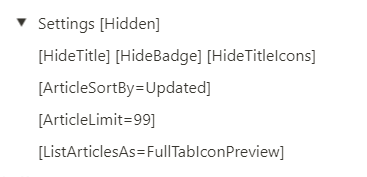
| ListArticlesAs | [ListArticlesAs=FullPreview] | List |
| ListPagesToo | [ListPagesToo] | Lists pages and article both. |
| ListProfilesToo | [ListProfilesToo] | Lists profiles and article both. |
| ListUnlisted | [ListUnlisted] | Lists unlisted pages and articles too. |
| MainDatabase | [MainDatabase] | Makes database main. |
| Open | [Open] | Open Toggle |
| Password | [password=123] | Encrypts inner content |
| Priority | [priority=3] | Sets priorty of page on navigation bar |
| PrivateDatabase | [PrivateDatabase] | Makes database private. |
| Query (# Notation) | # →[configuration.title] or # ->[configuration.title] | Prints value of a query. (without space between # and arrow) |
| Slug | [slug=mypage] | Sets URL of page like yoursite.com/mypage |
| Unlisted | [Unlisted] | Page will not shown in navigation bar also article will not be listed. |
| Variable ($ Notation) | $ →[title] or $ ->[title] | Prints configuration variable. (without space between $ and arrow) |
 Theme Changer
 Test Article But With Very Long Title And More Characters


 Shamanism is a religious practice that involves a practitioner interacting with the spirit world through altered states of consciousness, such as trance. Beliefs and practices categorized as "shamanic" have attracted the interest of scholars from a variety of disciplines, including anthropologists, archeologists, historians, religious studies scholars, philosophers and psychologists. Hundreds of books and academic papers on the subject have been produced, with a peer-reviewed academic journal being devoted to the study of shamanism.
 Configuration
